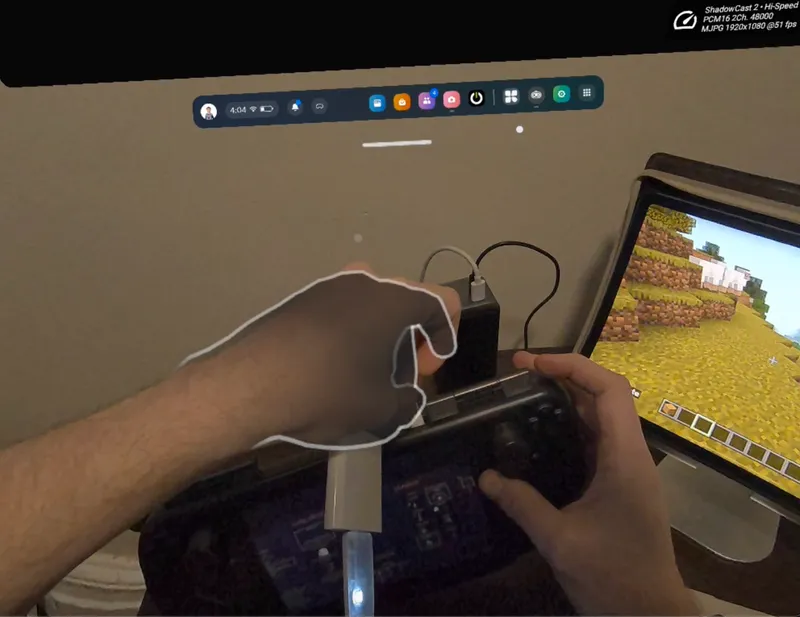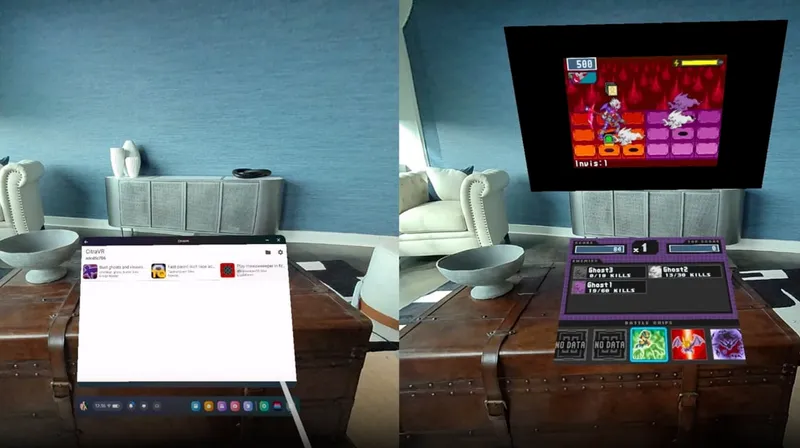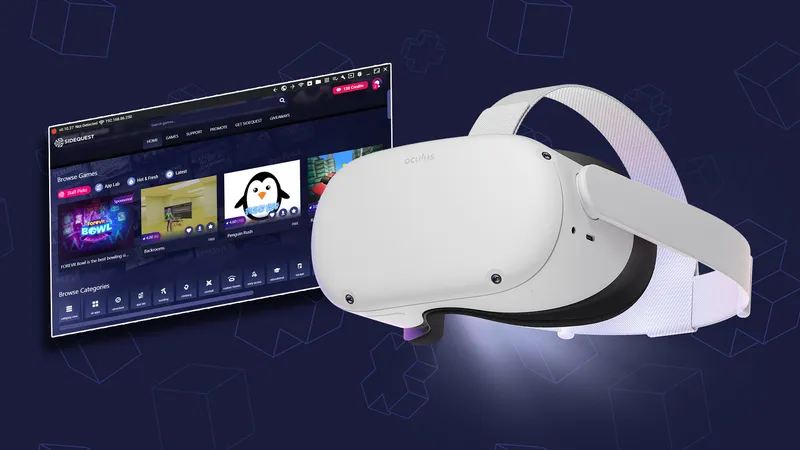


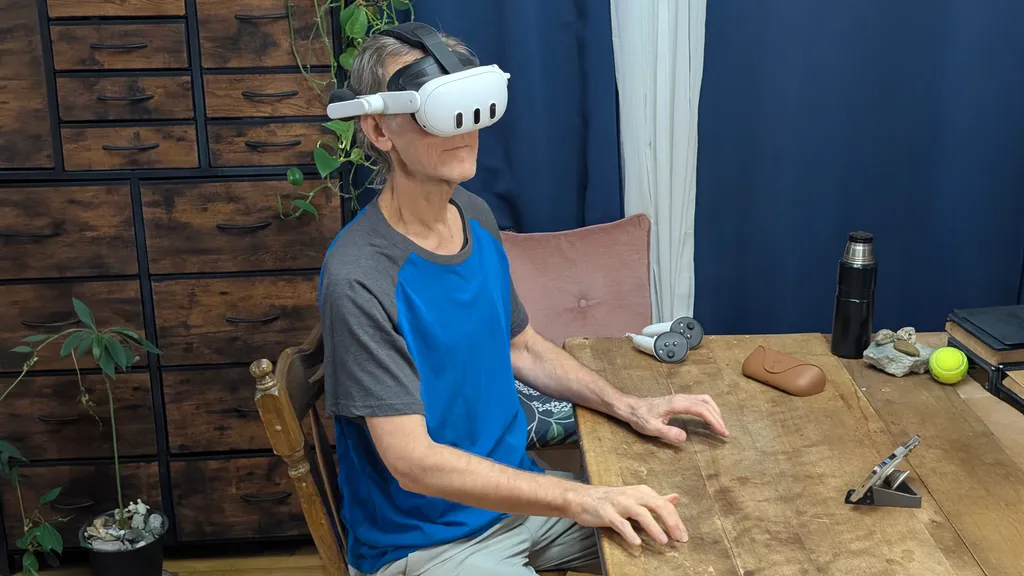
Meta's Quest 3 is the best choice for standalone VR gaming and fitness, but you may not be aware how well it works as a relatively affordable travel-ready spatial computer.
With the latest updates to Horizon OS, Quest 3 and Quest 3S can now effectively double as portable computers. You can experience multiple giant screens without taking up any extra room, an awesome bonus if you live in an apartment or shared space.
As a portable virtual computer, your Quest headset gives you more screen space than a laptop, and vastly more than a phone. However, some setup is required to avoid unexpected issues when you’re away from your usual tech. If you test essential websites, verify logins, and settle on a comfortable typing method, your Quest 3 can feel less like a casual-use headset and more like a computer you can count on.
With the right setup, your Quest 3 could even become a primary device around the house, especially if you like working in short sessions, streaming video, and switching rooms. Think of this as turning your headset into a grab-and-go workstation for the web apps, messaging, and media you already use.
The Quest Pro and Quest 2 will work in a pinch, but they miss some newer features, including Meta’s touch-typing keyboard that projects onto a surface. It is not yet available on the Quest 3S, but datamining by Luna suggests it will be enabled eventually.
 David Heaney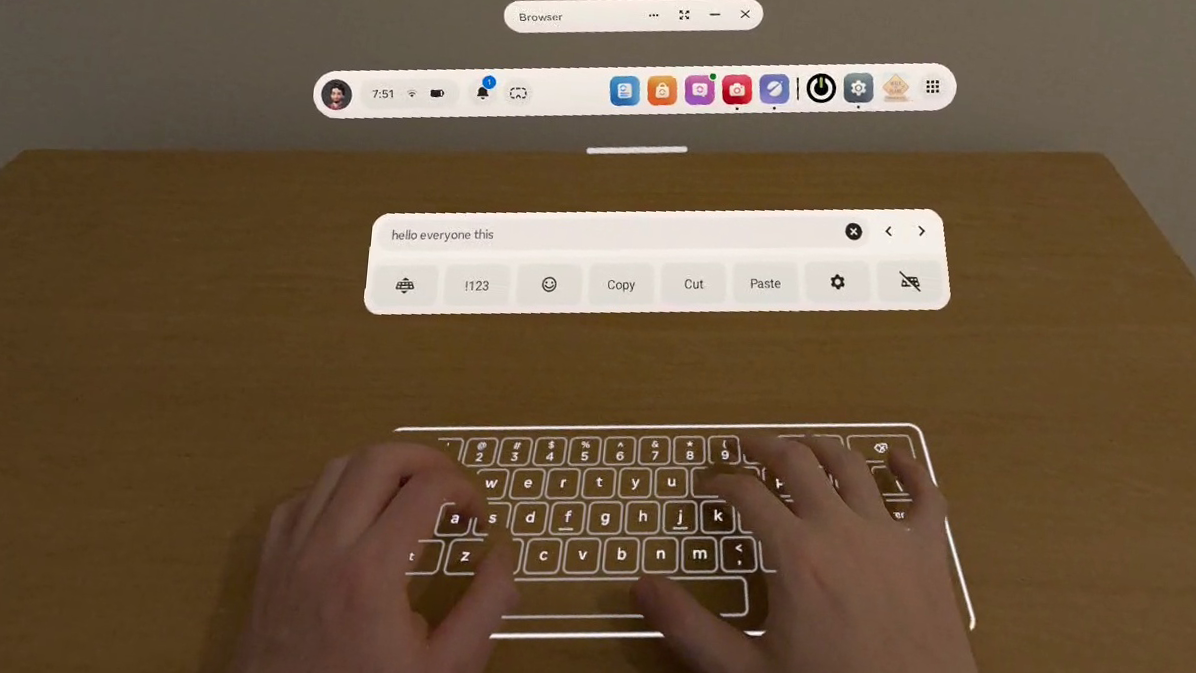
Test The Horizon OS Browser
If you want your Quest 3 to function as a portable computer, the browser is its foundation. Productivity depends on web app and website compatibility, so testing matters.
Don’t just load a page and assume you’re good. Try the things you normally do on your computer. Sign into important accounts, create and edit documents in the web apps you use, and upload/download files if that’s part of your process. If something fails, try to find a simple solution or alternative.
I ran across a great example of unusual behavior using Google Docs in my Quest 3. Everything I type appears underlined. It actually isn't, and if I click elsewhere, it reverts to plain text. It works, but the glitch is visually disruptive.
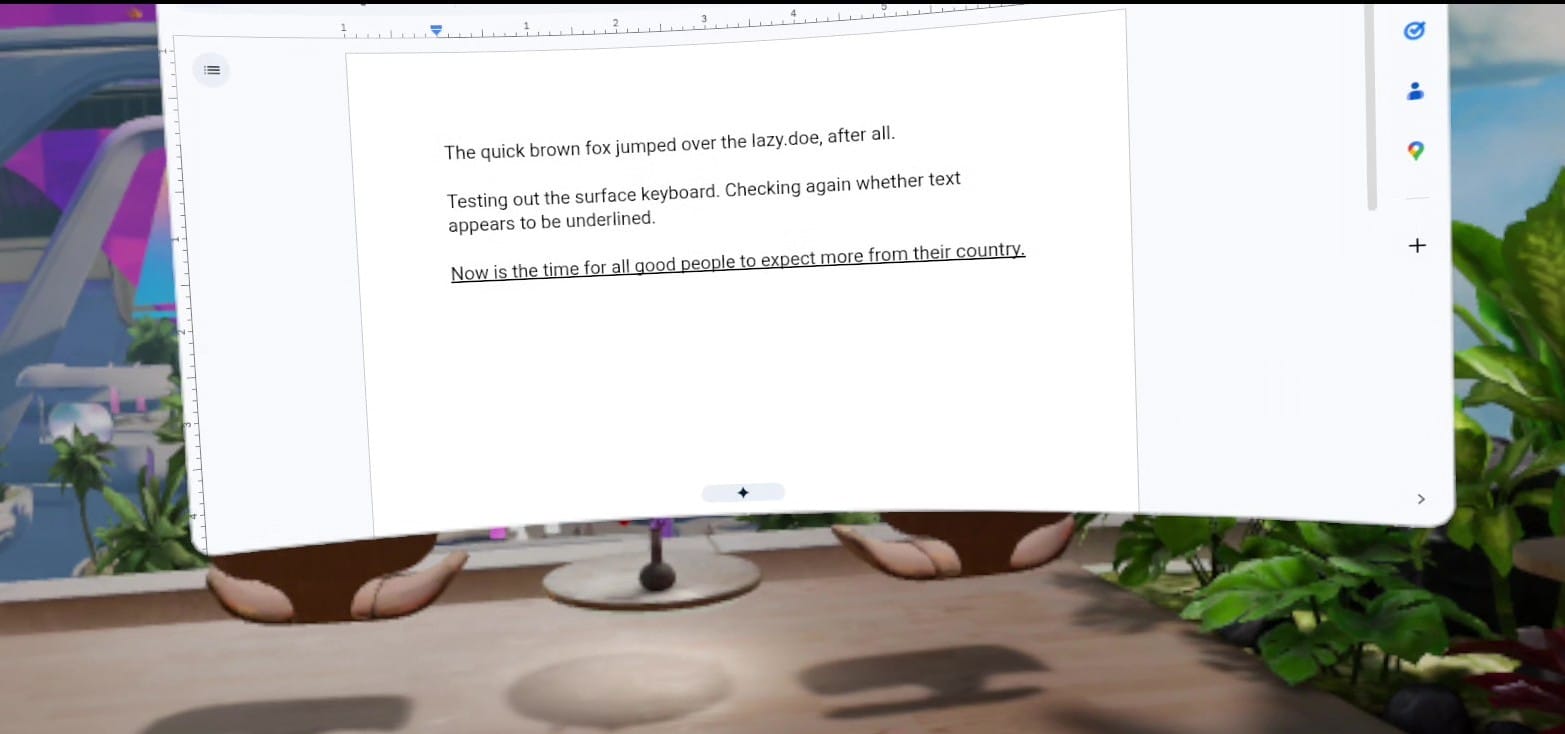
Another easy workaround is to use a different online editor, such as Microsoft Word, StackEdit, or Lex. Even if your favorite web app works perfectly, it’s worth having a backup, because little quirks like this show up when you least expect them.
If a particular website doesn’t play nicely with Meta’s browser, you may need a different one. Choices are limited on Quest headsets, but there is at least one alternative.
The Fluid Browser
Fluid is my favorite third-party browser for Quest headsets. It’s based on Chromium, with an optional per-website mode that uses Gecko, the Firefox renderer. It behaves more like the browsers on your computer or phone, which can help with picky web apps.
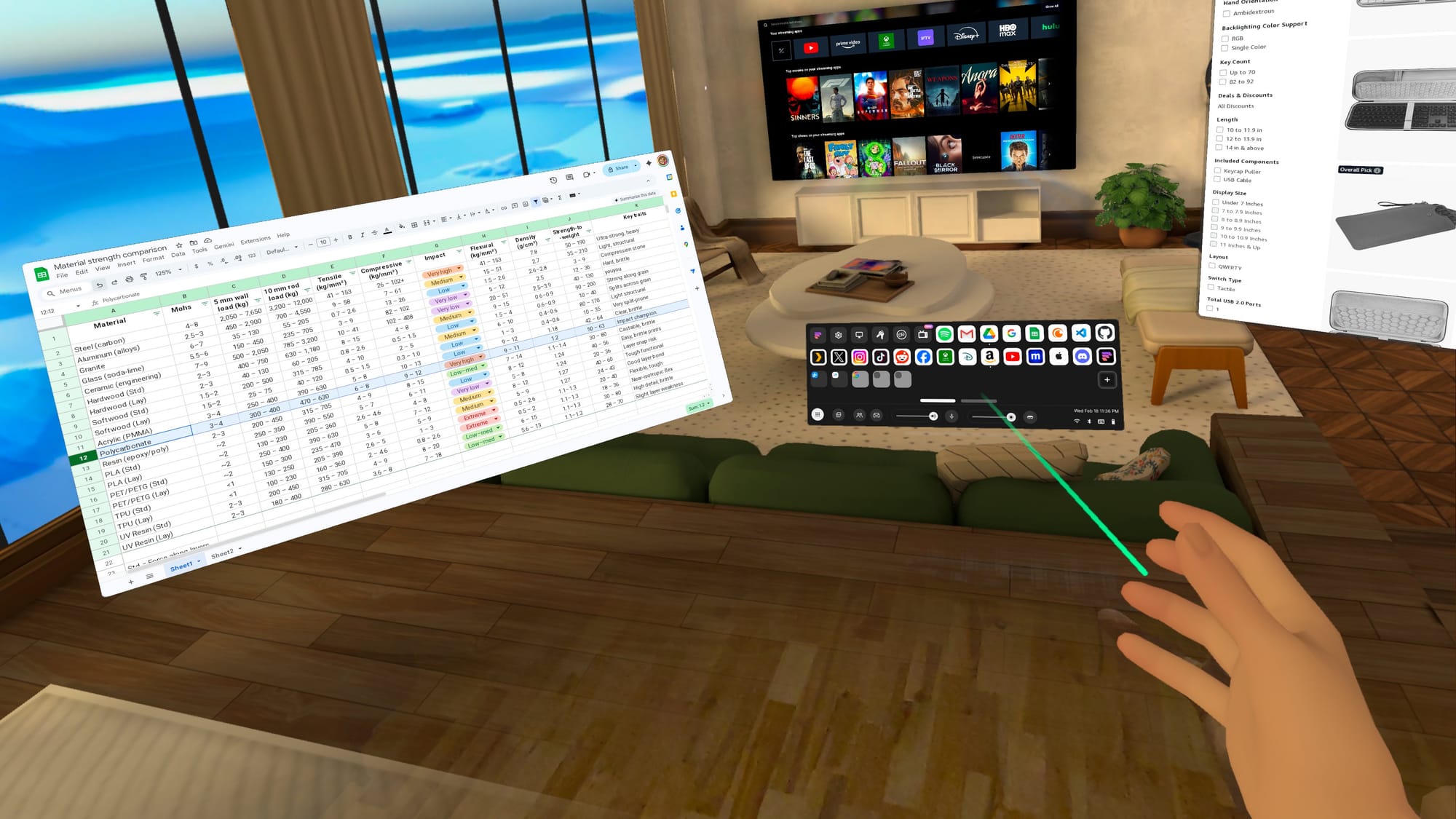
Fluid’s interface is also more flexible than Meta’s. Hand gestures can trigger voice input, manipulate windows, and move you through virtual rooms. It also offers advanced features like adjustable passthrough range, multi-user window sharing, theater modes, and remote access to your computer.
There are other third-party browsers, but most suffer from weak app store ratings. Fluid averages 4.5 stars, backed by an active community and a responsive dev team.
Prepare Your Browser
You’ve been refining your computer’s bookmarks, logins, and settings for years. To get a smooth transition on Quest, you’ll want a little prep work. Some Horizon OS browser features may still be rolling out, so they might not appear on your headset yet.
Backup And File Access
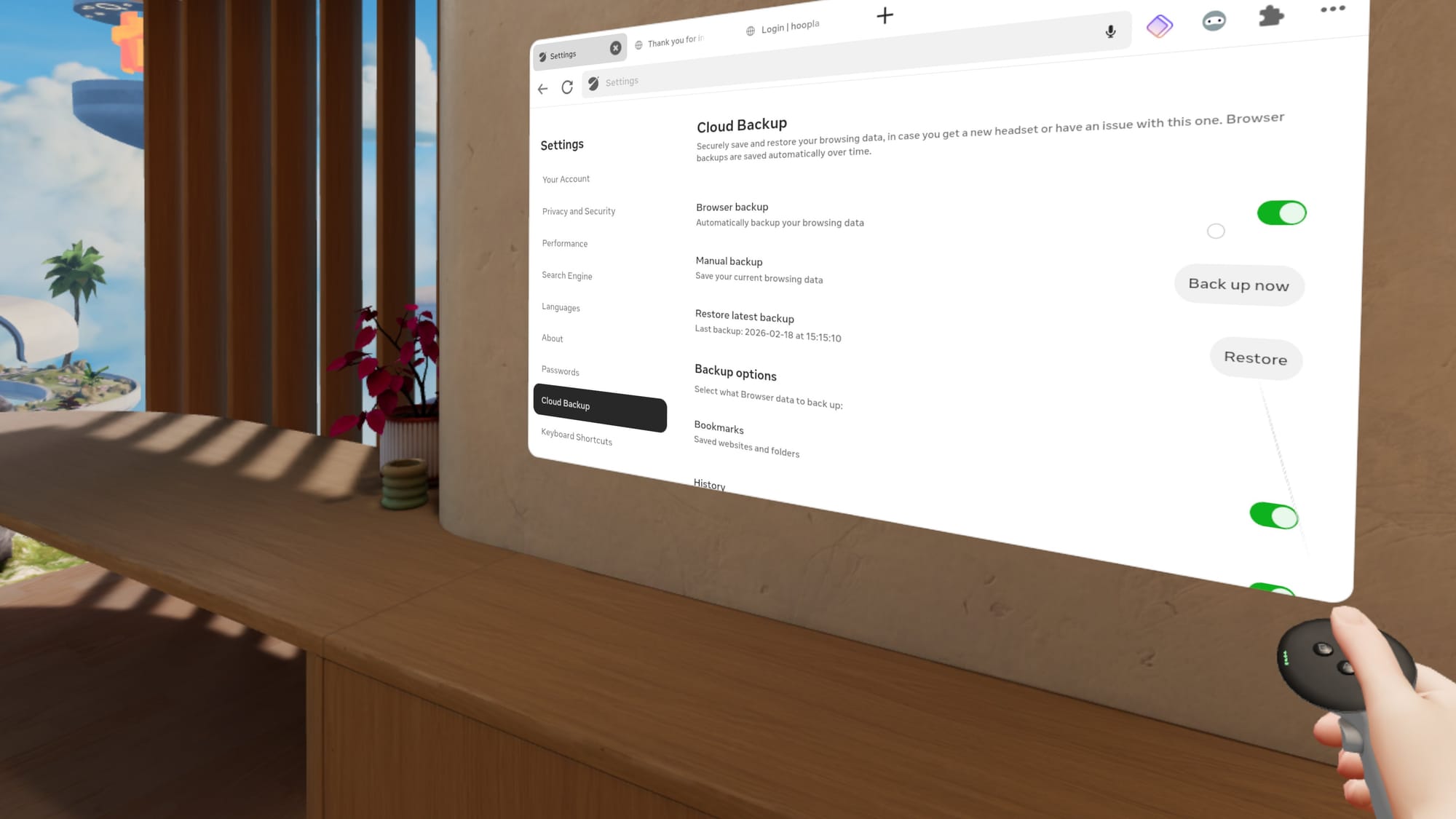
Enable Cloud Backup in the Horizon OS browser, so you don’t have to start over if something goes wrong. You can find the toggle in browser settings. Cloud Backup can restore bookmarks, browsing history, and extensions.
If you need access to important files or photos, cloud storage is the easiest path. Upload what you want from your computer or phone, then open it on Quest through the web apps you already use.
Password Autofill
Logins matter, and modern security requirements can make access annoying from any device. The easiest solution is Meta’s password import feature in browser settings under Passwords. Meta includes instructions for exporting from Chrome, Safari, Edge, and others. You may also want a device PIN to keep accounts secure.
This isn’t the only option. Some third-party password managers offer web apps that work in any browser, and a few have extensions for the Horizon OS browser.
Browser Extensions
If security and privacy are crucial, you’ll want extensions for your password manager, a content blocker, and possibly a VPN. Meta’s extension ecosystem is growing, but the Horizon OS browser only supports about a dozen extensions so far.
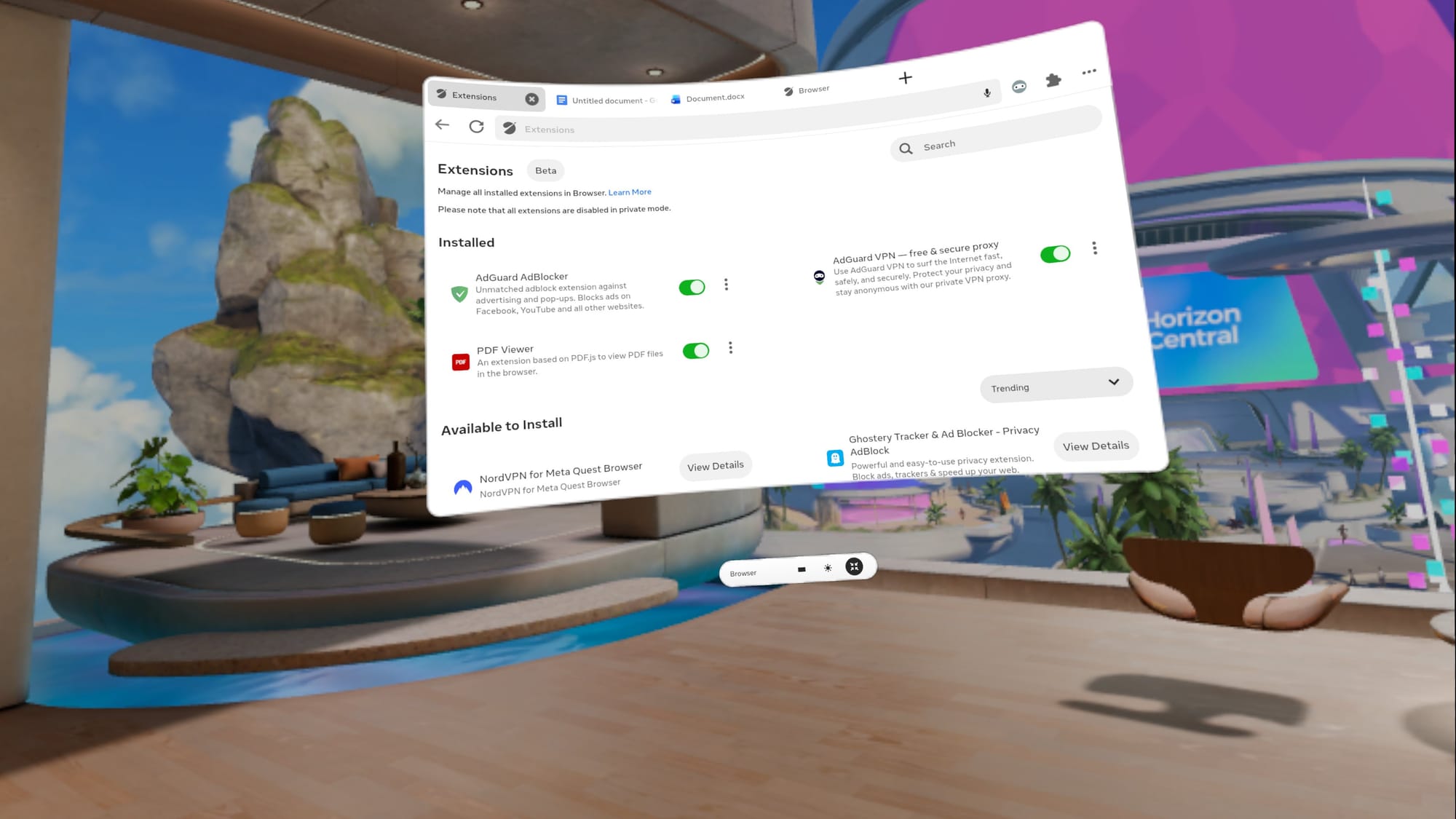
You can find extensions by selecting the puzzle piece at the top right of a browser window. A new tab opens with installed extensions, toggles, and a list of available add-ons.
Test your password manager and VPN while your computer and phone are nearby. It’s easier to authenticate MFA, access email, and verify passkeys before you travel.
Building Bookmarks
Meta doesn’t have a bookmark import option, offering instead link sharing via the Horizon mobile app. Saving one bookmark at a time would become tiresome quickly. Fortunately, there are some good workarounds.
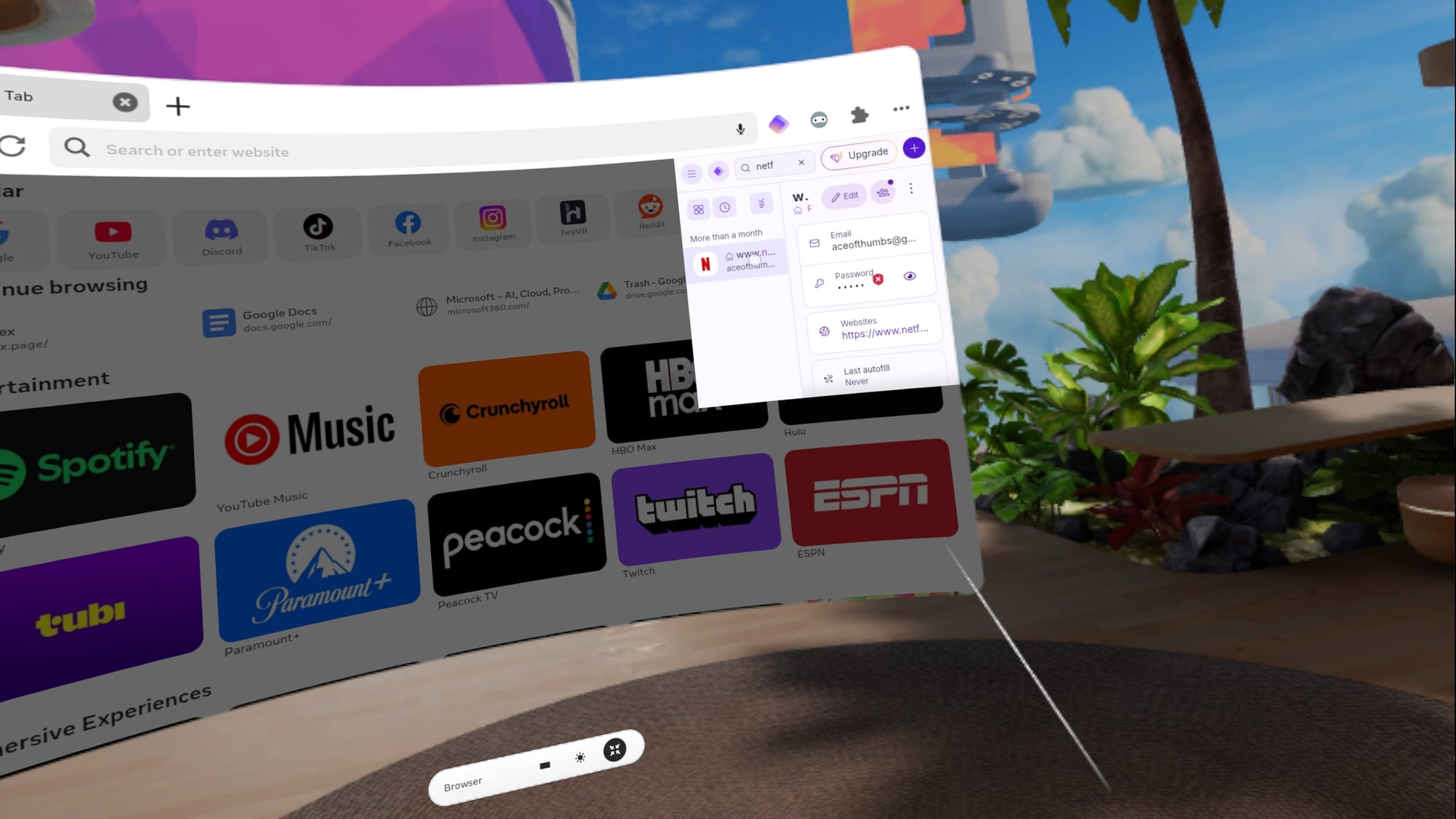
Proton Pass is a free password manager with a Horizon OS extension, and it can double as a website launcher if you pin it. Third-party browsers are a mixed bag. Fluid lacks bookmark import, but supports several password managers. Wolvic deserves credit as one of the few Quest browsers that can import bookmarks by syncing from Firefox.
Bookmarks shouldn’t be this hard, but it’s worth spending a few minutes to make your favorite websites accessible. With a working system, you’re one click away from the tools you actually use.
Explore Input Options
Quick, reliable text entry is the difference between casual browsing and real work. Quest 3 offers multiple ways to type, and you might use different ones depending on the situation.
The System Keyboard
Two-finger typing on the default pop-up keyboard is fine for quick searches, short messages, and the occasional form, but it isn’t ideal for drafting and editing. That’s why you should enable Swipe typing in Virtual keyboard settings and turn the mic on in Quick Settings.
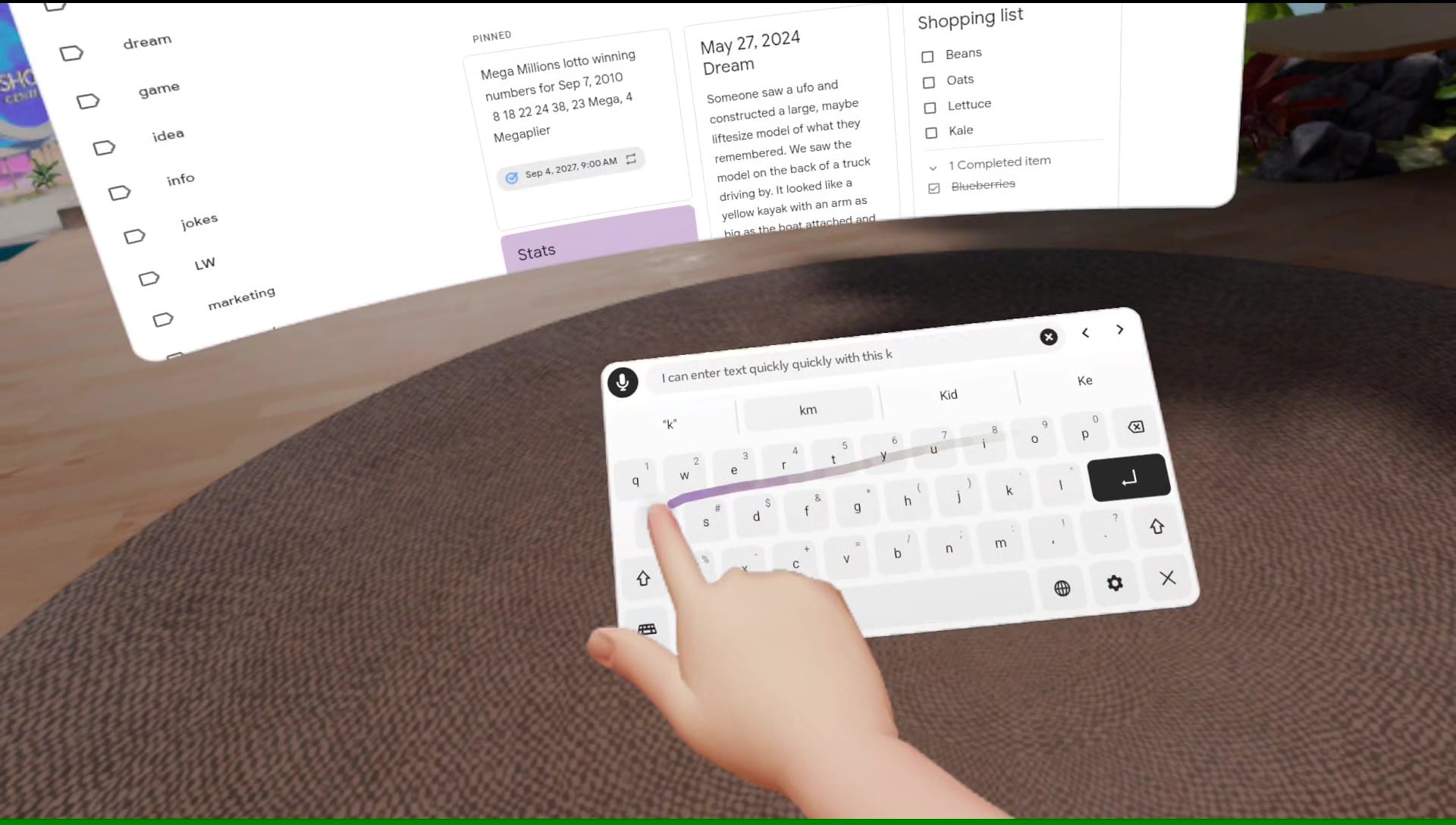
The default keyboard includes a mic icon, and one click lets you dictate words, website addresses, or whole paragraphs. It’s fast, accurate, and you don’t need to speak loudly.
Swipe typing works just as well as it does on your phone, but with a larger keyboard. I like to bring the keyboard close and use a finger, but a controller works, too.
Bluetooth Keyboard And Mouse
Bluetooth accessories are still the most predictable way to make Quest feel like a computer. A compact keyboard is usually easy to pair, and a mouse makes selection and window control far easier.
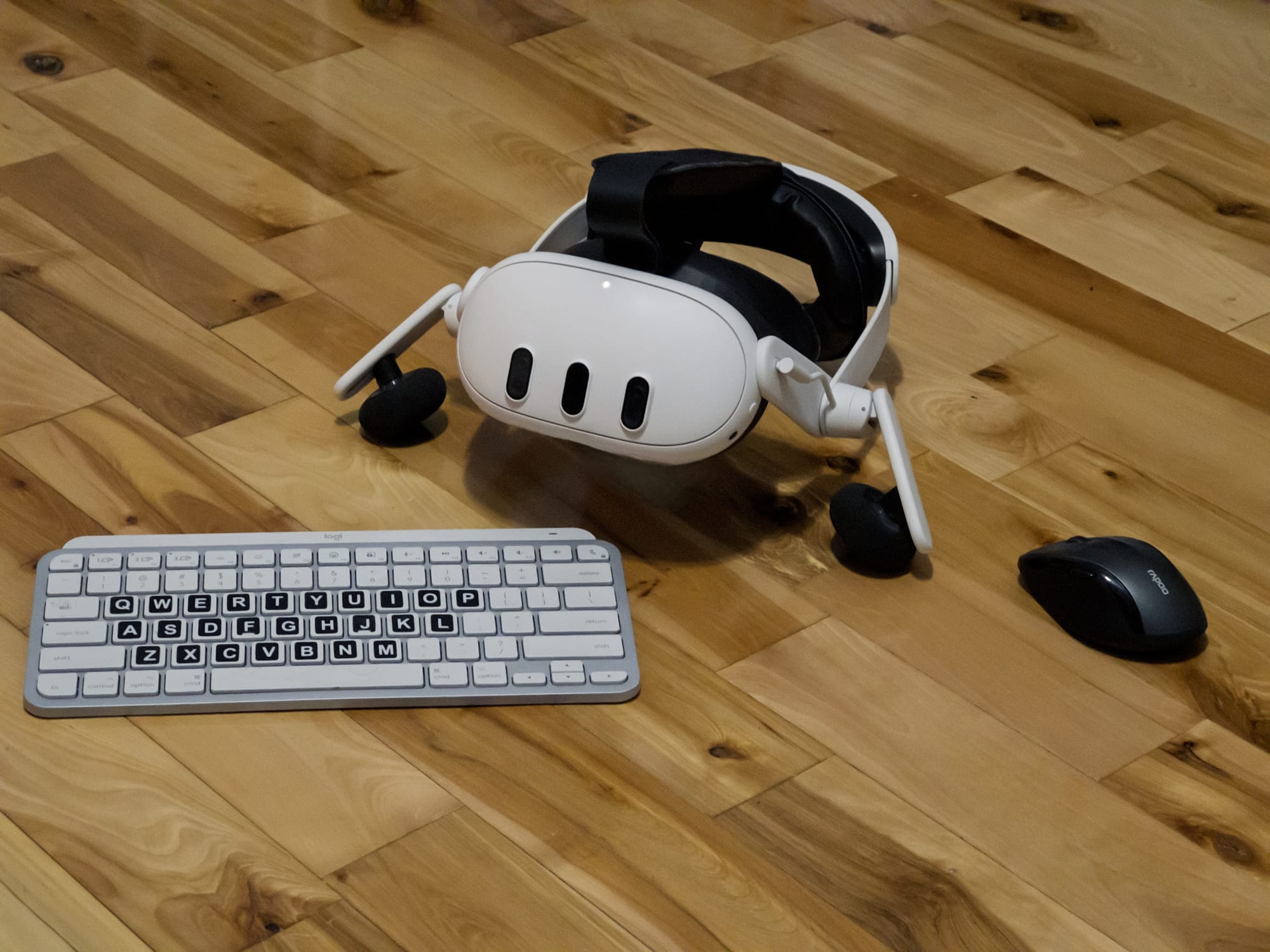
If you want to pack light, a keyboard with an integrated trackpad can be ideal.
Meta’s Surface Keyboard Surprise
If you have access to Meta’s new Surface keyboard, it’s worth exploring in Experimental settings. A projected keyboard sounds like a novelty, but it’s genuinely useful if you touch type.
Since it aligns with your desk or table, you get tactile feedback. Meta added a trackpad and a hovering toolbar with cursor arrows, copy, cut, and paste. A preview window in the toolbar lets you see what you’re typing while looking down at the keys.
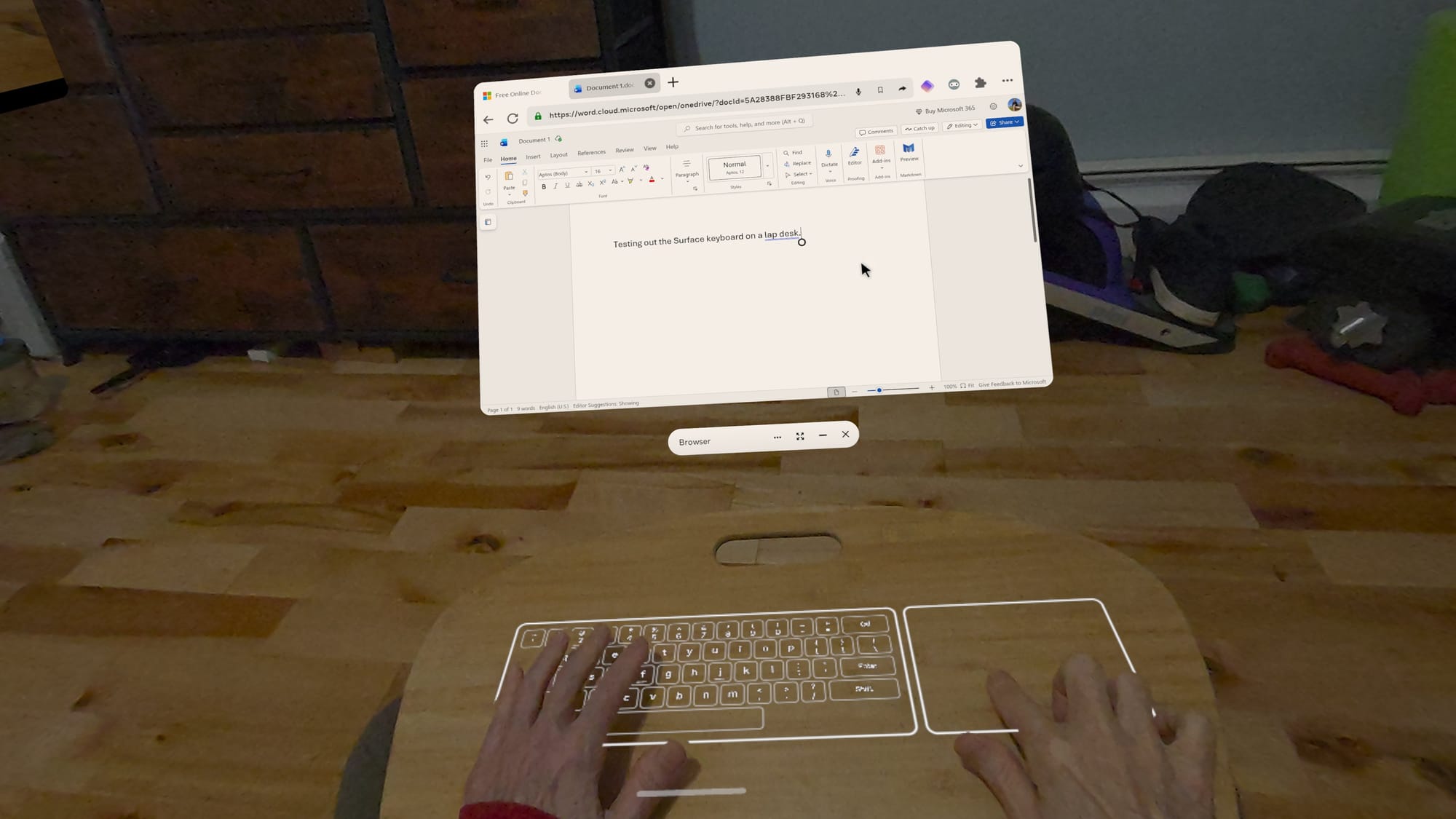
It can’t compete with the clackity, full-travel keyboard I use with my desktop. Physical keys still win for long sessions, but the Surface keyboard does a good job simulating a soft, laptop-style keyboard and trackpad.
The biggest benefit is portability. I’m not dragging a keyboard and mouse between rooms or packing them when I travel.
Explore Apps
A browser-first setup might be all you need, but the Quest 3 becomes more useful when you add apps that benefit from VR or mixed reality. For 3D work, VR-native tools can be a leap forward. Your model is in the room with you, and you can handle it like an object. Apps like Gravity Sketch and ShapesXR let you think and build in space, which is hard to replicate on a flat screen.
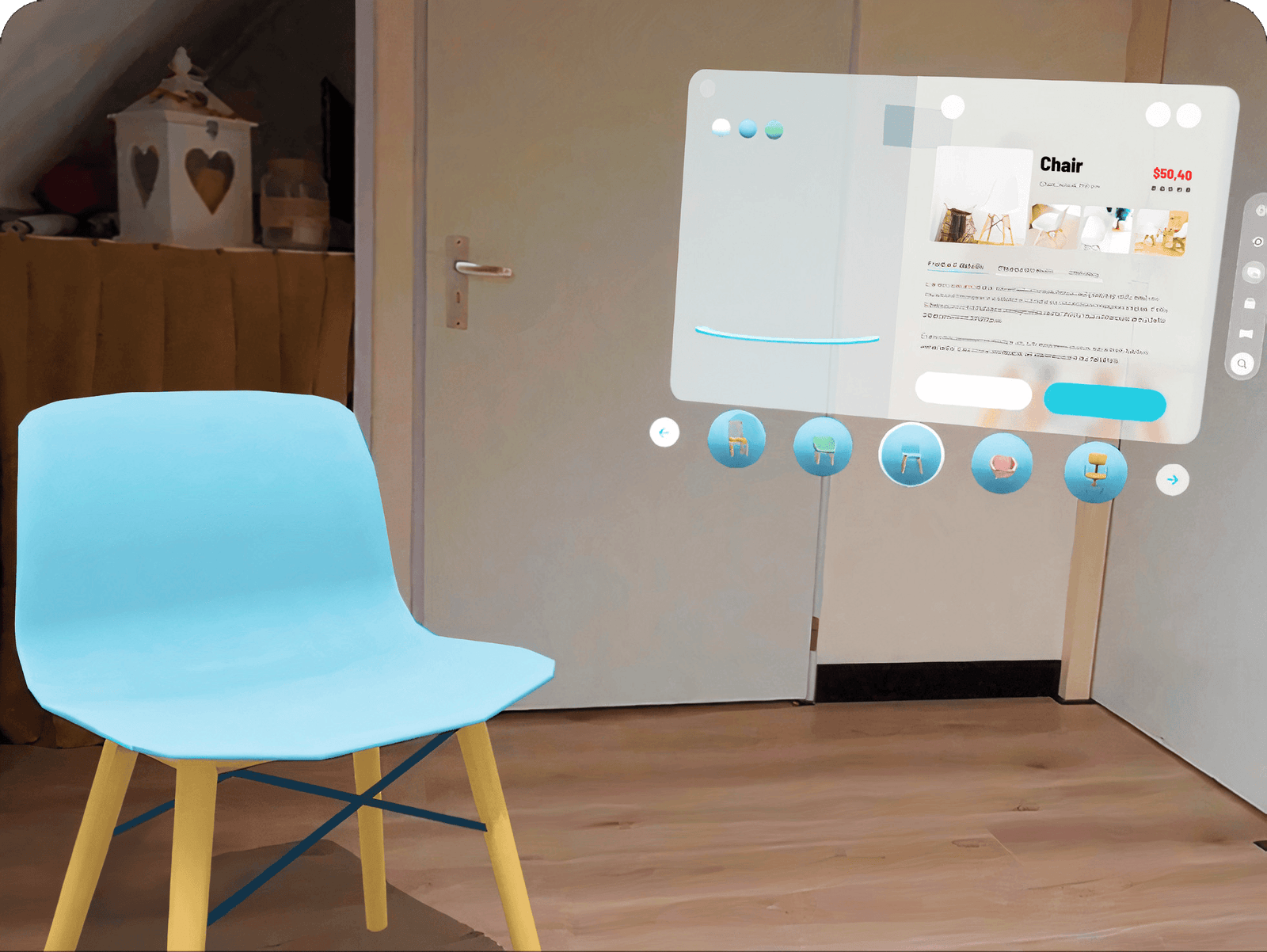
Meta’s Instagram, Facebook, and Messenger apps can be useful for messaging and keeping in touch while wearing your headset. Instagram offers a fun new feature that automatically converts photos and videos to 3D.
Streaming is a big win for most Quest owners. Whether you use native apps or browser tabs, having a giant screen anywhere makes casual viewing feel like a private cinema. Test the streaming services you use, both the app and the browser version, to find out which works best for you.
Portability Tips For Home And Travel
Your Quest 3 or Quest 3S might be all you need around your home or office, but a few accessories can make a big difference when traveling. I recommend a charger and USB-C cable, a battery pack for longer sessions, between charging, a microfiber cloth for lenses and sensors, and Bluetooth accessories if you prefer them.
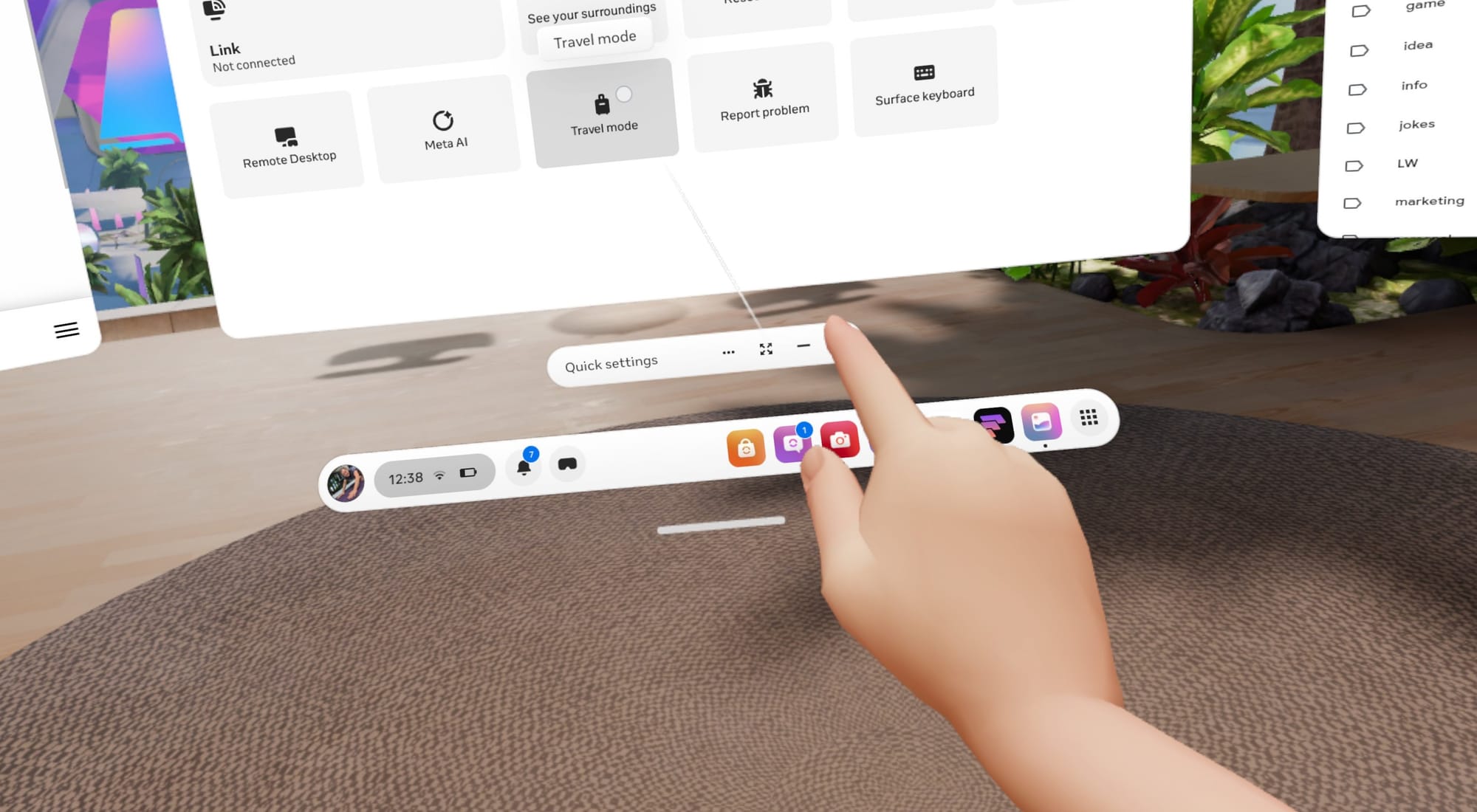
If you want to use your headset on a plane, train, or other vehicle, your Quest 3 has a Travel mode that can help. When movement is detected, the option can appear automatically, and you can also switch it on manually in Quick Settings.
The least glamorous tip is also the most practical. Spatial computing is still fringe tech, so plan for glitches. Install a third-party browser in case something doesn’t work in the system browser. Keep your phone nearby for MFA requests. Make sure the Horizon mobile app is installed, so you can send links and photos to your Quest.
Your Quest 3 As A Spatial Computer
The Quest can be a great portable computer, but its processor and storage are closer to the hardware of a phone than a laptop. You shouldn’t expect it to handle a hundred tabs while streaming video and processing voice input. However, with a little self-restraint and tab management, you might be impressed with what’s possible on such an affordable VR headset.
The Quest is great when your workflow is browser-first, when you enjoy advanced tech, and when you want easy portability. It really shines when you lean into VR-native tools for spatial work, because a laptop can’t match the experience of stepping into a 3D workspace.
While a VR headset falls short for specialized desktop software, heavy multitasking, and some peripheral connectivity, remote access can fill the gap. Apps like Virtual Desktop make macOS and Windows connections easy and reliable.
The key is choosing the right tool for the job. As long as you don’t expect miracles, a Quest 3 or Quest 3S can serve as a low-cost, all-in-one system that creates a unique spatial computing experience that provides a taste of the future with virtual screens, intuitive gesture control, and projected mixed reality interfaces. All it takes is a little setup time and exploration.