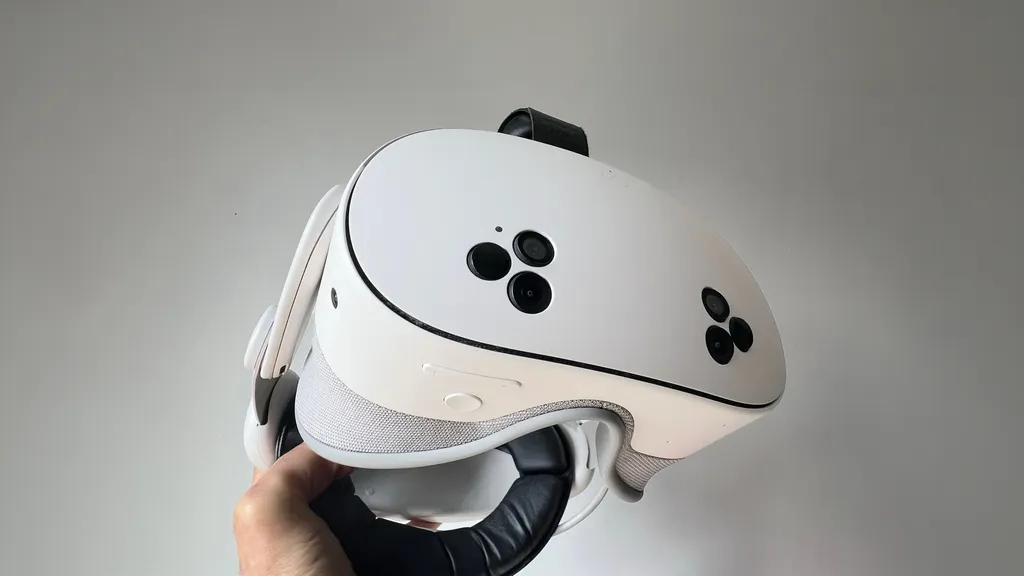
Meta is finally giving the unique action button of the Quest 3S more actions.
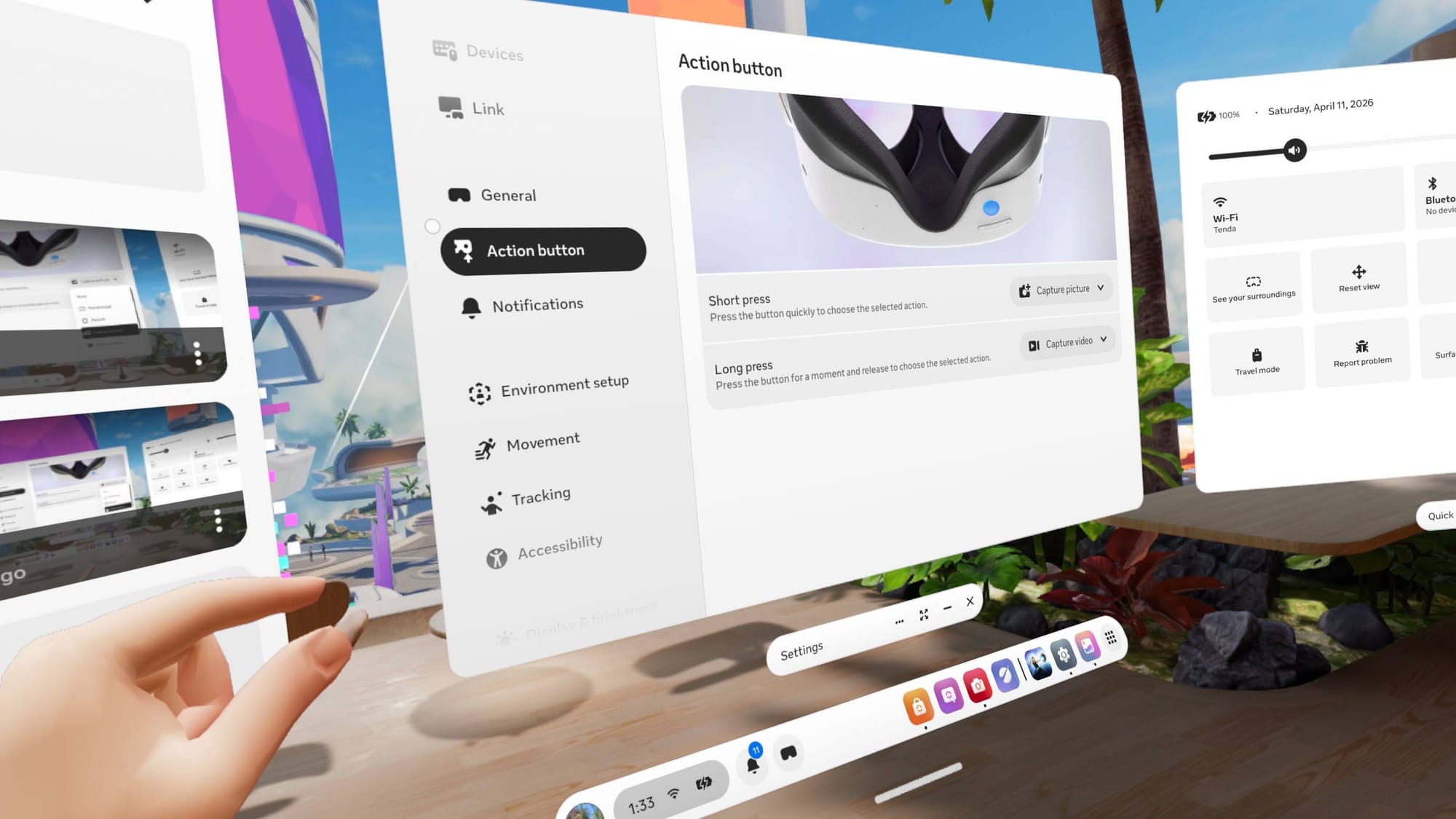
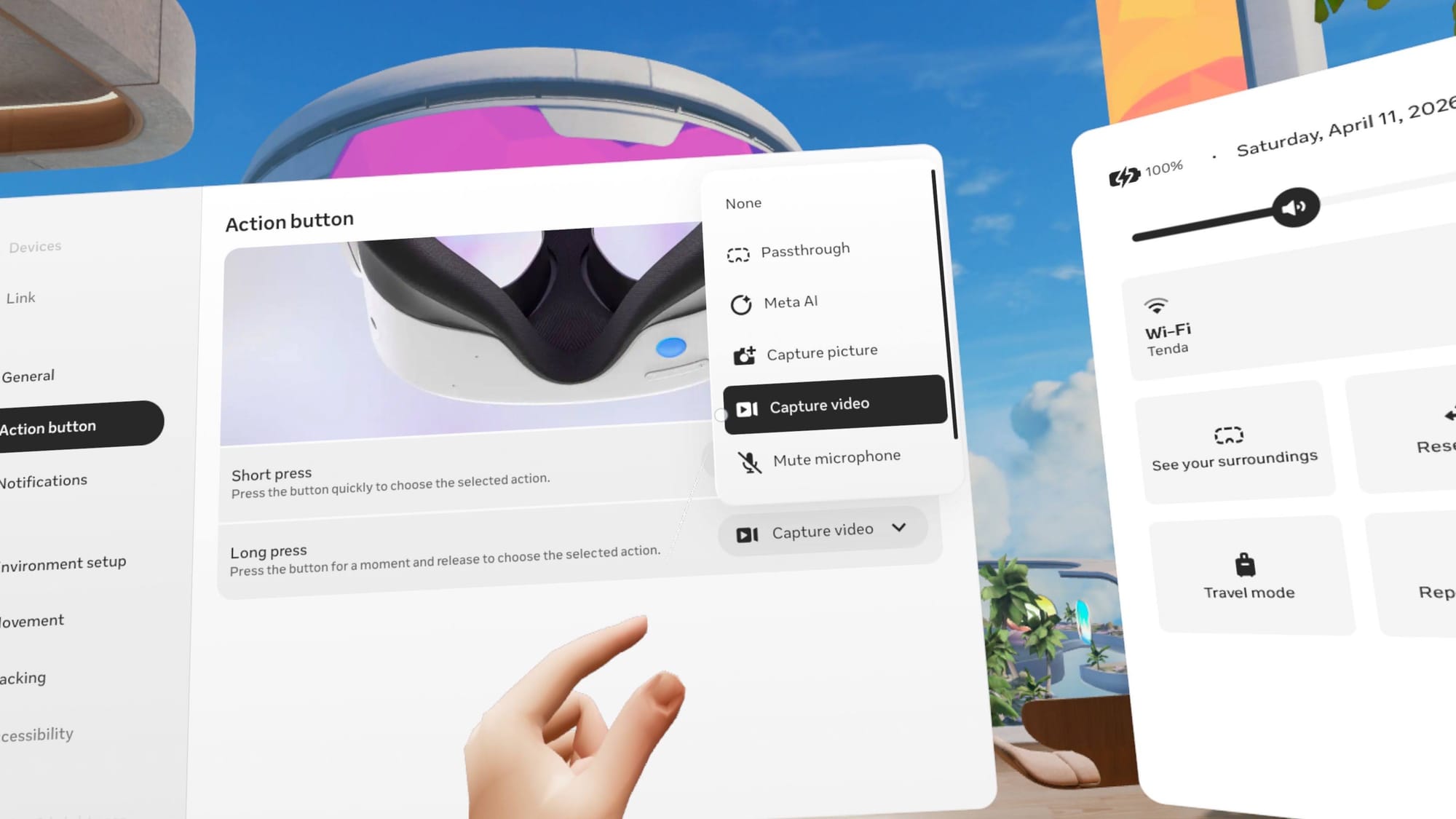
Initially, it had just one: toggling passthrough. Pressing it conveniently switches between an immersive view for VR gaming and a paused passthrough mode where you can see your actual room. Still, more customization is always welcome, and since v85 PTC, Meta has been rolling out the ability to choose between 5 options:
- Passthrough (the default)
- Meta AI
- Capture picture
- Capture video
- Mute microphone
I can also pick an action for long presses, doubling up the usefulness.
 David Heaney
Since I’ve been using Quest 3 for years, I’m used to double-tapping the side to enter passthrough, and that muscle memory often overrides the action button. By the time I remember it, I’ve already switched the outside camera view. That’s why this action button customization makes it much more powerful. I can use it for other purposes.
Quicker Captures
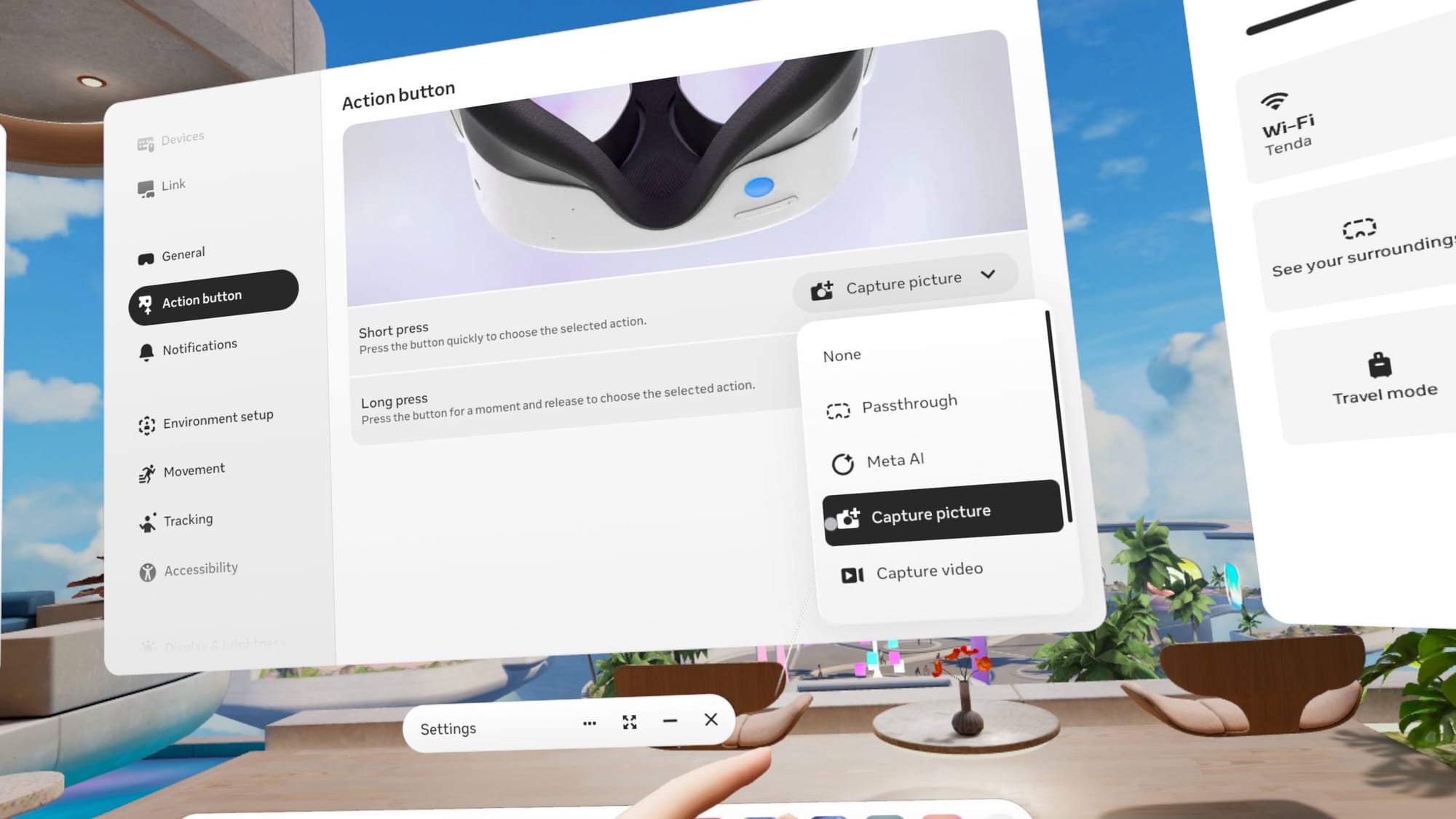
When I set the action button to Capture picture, I can quickly snap a well-timed screenshot while using hand-tracking. The awkward combination of the Meta button and trigger failed me often, but the action button works reliably every time.
The same is true for screen recording. I set the action button’s Long press to Capture video, so I don’t have to deal with a finicky button combination or navigate menus to start recording.
Meta AI On Tap
The default way to activate Meta AI, other than awkwardly saying "Hey Meta", is by holding the Meta button and squeezing the grip button on your right controller. That works but feels slow. Maybe that’s why I use Meta AI with my Ray-Ban Meta Smart Glasses, but I rarely do so in VR. Still, it’s nice to have the option.
If you do use Meta AI in your Quest 3S, it’s just a tap away if you select Meta AI in action button settings. A single press speeds up activation so you can prompt and get an answer faster. Meta AI’s arrival on Quest already hinted at how much more central voice interaction could become in Horizon OS, and this makes it feel a bit more practical.
David Heaney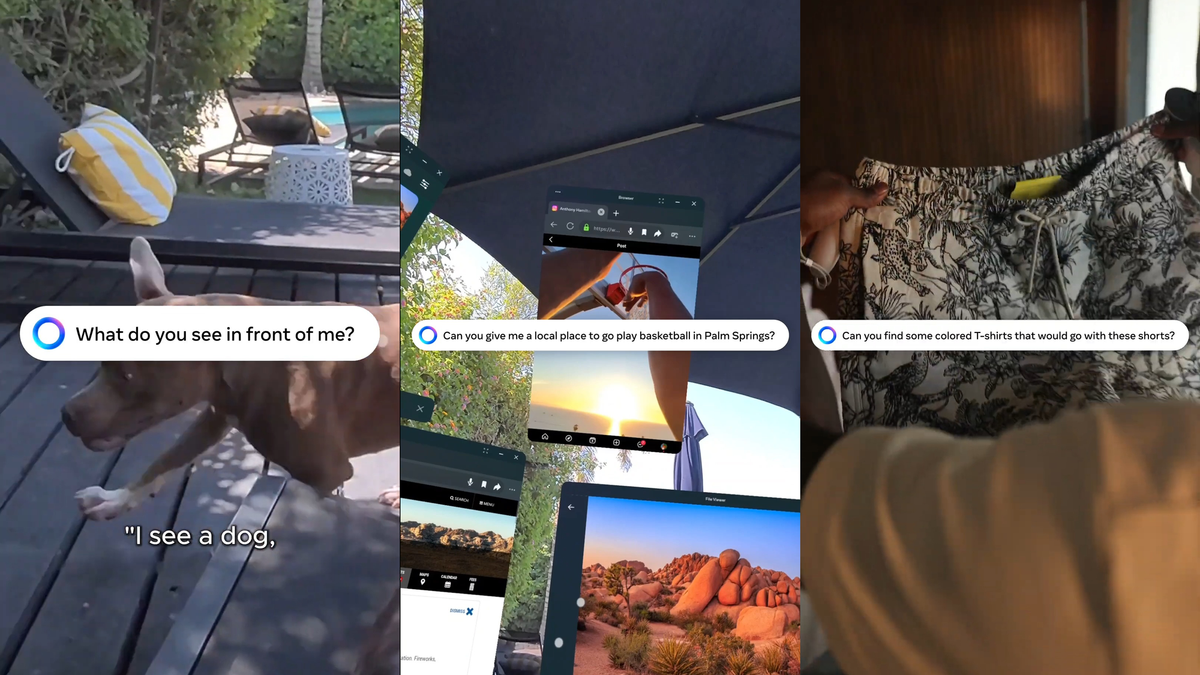
Cut The Chatter
If you’ve ever been startled to find your mic is active in a shared space, you might want to set your action button to Mute microphone. It’s nice to click to silence a cough or cut background sounds bleeding in from real life.
Waiting For Roll Out
My Quest 3S is on the Public Test Channel (PTC) and I’m on v2.1, but I just received the action button customization setting that was described in v85 PTC. As is typical with Meta, it could take months before action button customization rolls out to you, or it could arrive tomorrow.
This feels like a great addition to the platform, so I hope it goes live for all Quest 3S owners soon. The action button is found only on the Quest 3S, so you’ll need to rely on the older screen capture, Meta AI, and mic controls if you own a Quest 3 or older models.







![Good Morning [Employee Name] VR Trailer Hints At An Unsettling Office Mystery](https://storage.ghost.io/c/2a/2f/2a2f38f0-4b71-407a-9c7e-18a9e2541980/content/images/size/w800/format/webp/2026/10/good-morning-employee-name-vr.jpg)






![Good Morning [Employee Name] VR Trailer Hints At An Unsettling Office Mystery](https://storage.ghost.io/c/2a/2f/2a2f38f0-4b71-407a-9c7e-18a9e2541980/content/images/size/w480/format/webp/2026/10/good-morning-employee-name-vr.jpg)